
NFC Card Setup in 5 Minutes: A Simple Walkthrough
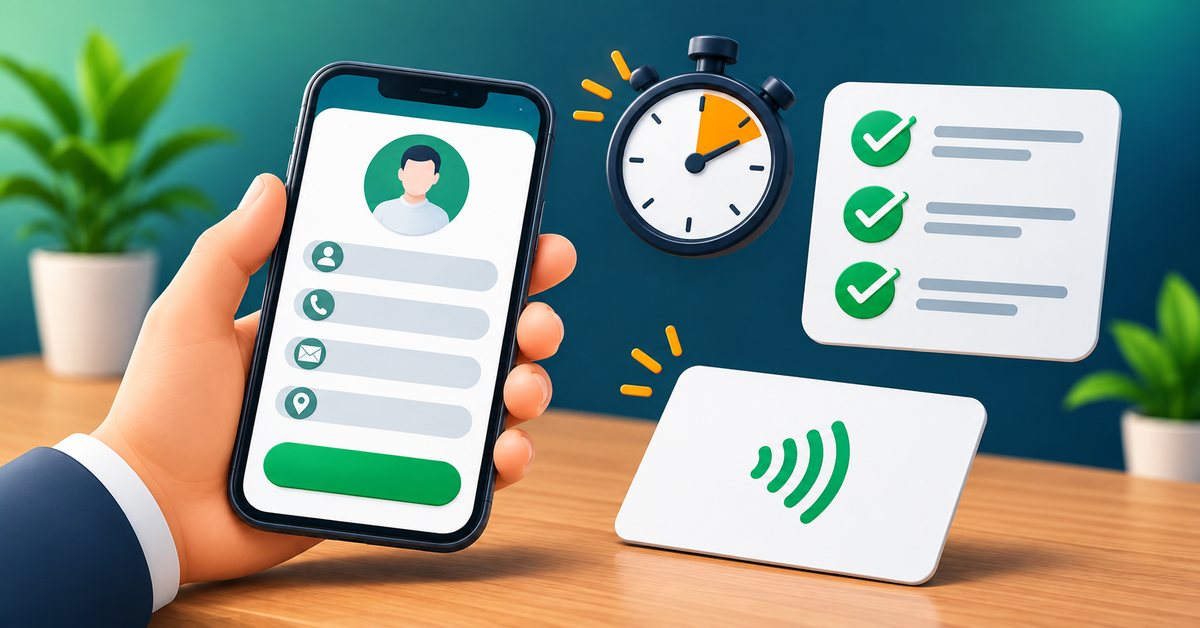
You have ordered an NFC card, or you are about to. What happens next is easier than most people expect. This walkthrough shows how to get from an empty profile to a card that opens correctly when tapped, in about five minutes. The exact screens may look slightly different over time, but the steps remain the same.
Before you start
You need three things: a phone, a few details about you or your business, and either your new card or a plan to order one. If you have not ordered yet, the how to order page explains the steps from checkout to delivery, including the design approval by our designer.
Have these ready:
- Your name, role and a short description
- A profile photo or logo
- Phone number and WhatsApp number
- Email and website if you have them
- Address or a map link if customers visit you
Minute 1: Create your account
Open the Sharevo site and sign up with your email. Confirm the email if asked. Keep your password somewhere safe. This account is where you edit your card later, so use an email you check.
Minute 2: Create your digital card
Choose to create a new card. Pick a template. Do not spend long on this, because you can change the template later without changing your link. Give the card a name and choose your link name, which is the short ending of your card address, for example your name or business name. Short and simple is best because you may need to say it aloud.
Minute 3: Add your details
Fill in the essentials first:
- Name, role and a one-line description.
- Photo or logo.
- Phone, WhatsApp and email.
- Location with a map link if relevant.
Add services, gallery and social links after you have finished the basics. A half-complete card that works is better than a perfect card that is never finished. Plan limits for features such as gallery or extra cards are listed on the pricing page.
Minute 4: Check how it looks
Open your card link on your own phone, as visitors will see it. Check that the call and WhatsApp buttons work, the photo is clear and the text is easy to read. Fix any typo now. Then share the link with a friend and ask them to try the buttons.
Minute 5: Tap to test the card
When your card arrives, hold the top back of your phone against the card. On iPhone XS and newer, a notification appears; tap it. On Android, make sure NFC is on, the screen is unlocked and then hold the back of the phone against the card. Your digital card should open.
If it opens, you are done. Ask a friend with a different phone to try as well, to be sure about both iPhone and Android.
If the tap does not work
- Turn NFC on in the Android settings.
- Unlock the phone screen.
- Remove a thick or metal-backed case.
- Move the card slowly across the back of the phone to find the right spot.
- Check that the link in your account is the one you expect.
- If it still fails, message our support with your order number and the phone model, and we will help you check it. Replacement conditions for faulty cards are in the refund and cancellation policy.
The QR code on your card is a good backup while you troubleshoot.
After setup: three habits
- Keep your card updated. Change your number or services in the account and the same physical card shows the new details.
- Carry the card where you can reach it. A pocket or the back of your phone cover often works, as long as it is not a metal plate case.
- Mention it. When you meet someone say, "Just tap this and you will have my details." People remember the demonstration.
Where to find more cards
If you want a second card for a partner or a standee for your counter, you can look at the options in the shop.
FAQ
Do I need to install an app to set up my card? No. You can set up everything in the browser. Visitors never need an app.
Can I change my link name later? Changing the link means the printed or encoded card must point to the right place, so choose it carefully before the card is encoded.
How many times can the card be tapped? NFC cards are designed for many taps and have no battery, so normal use is not a concern.
What if I want to change my card design? Printed designs cannot be changed after printing, but your digital card can be edited at any time.